

There is no webhook to set up by hand. In the Zap editor, pick the Agentova app, then one of these triggers in the list of events. When you publish the Zap, Zapier subscribes to Agentova by itself: the subscription shows up in the Abonnements webhook table of Paramètres → API, with the key of the connected account. Turning the Zap off deletes it.
When a failure takes an automation away — revoked access to the account, a mailbox that refuses the sign-in, a channel that can’t be reconnected — the automation leaves the API and a last Automation status changed with the
error status is sent: by the time it arrives, looking the automation up by its ID answers automation_not_found. Deleting an automation or turning it off in the Agentova app sends nothing.
Every trigger fires for the whole workspace: all its leads, all its covered automations. To keep only some of them, add a Filter by Zapier step right after the trigger (see Ready-made Zaps).
New Lead
Fires once per new lead, a few seconds after it’s saved in Agentova. A lead is created — and Lead created fires — from five places:
A
social or crm lead is created only when the prospect gave an email or a phone number, and only once per person and automation. Its name is what Agentova knows: the Instagram or Facebook username for social, the first and last name from the CRM for crm.
These don’t create leads: the private messages and emails your agents reply to, and comments that don’t lead to contact details. For CRM sources other than Customer.io, the partner service that relays their events doesn’t yet tell Agentova which automation handled a contact: their leads are recorded only when the workspace has a single such CRM automation.
phone is the number as it was typed or captured — it isn’t normalized. custom_fields holds the extra answers of the form; keys starting with _ are internal to Agentova and are never exposed.
Fields you can use in later steps: ID (the lead’s ID), Event ID, Source, Agent ID, Name, Email, Phone, Custom fields, Created At. Name, email and phone can be empty, depending on what the prospect gave. Lead ID repeats the ID, for Zaps built with an earlier version of the app.
Run Completed
Fires each time one of your automations has actually done something.
Good to know:
- No run when nothing happened. A message your agent finally didn’t answer produces no run.
- Several messages in a row, one run. Messages that arrive together and are answered together make a single run.
- A Lead Ads automation with no action configured still records a run, with the
successstatus and an empty list of actions. While it’s paused, its leads are created but no action runs. - No runs for the website chatbot.
- CRM sources: Customer.io records a run for each contact it acts on. The other CRM sources (HubSpot, Typeform, Close, Monday, ClickUp, Tally, Odoo…) are relayed by a partner service that doesn’t yet tell Agentova which automation handled an event: their runs are recorded only when the workspace has a single such CRM automation. A CRM workflow records one run per action.
- On comments, an action you didn’t configure can show as
success. This is a known limitation. - Runs are kept for 90 days, then deleted.
success, partial, failed), Trigger Type, Occurred At, Actions (each with its Action Type, and its Action Status: success or failed), and Lead ID for Lead Ads and CRM runs. Run ID repeats the ID, for Zaps built with an earlier version of the app.
Automation Status Changed
Fires when an automation’s status really changes, from the Agentova app or from the API — including your own Zaps: it’s paused or reactivated, it stops on an error, or it comes back after its account is reconnected. These automations are covered:
Not covered in v1: phone agents, the website chatbot itself (it’s an agent, not an automation), scheduled social posts, and builder workflows. An automation that was deleted or turned off in the Agentova app, or whose account is disconnected, doesn’t appear at all.
Fields you can use: ID (the automation’s ID), Event ID, Name, Type, Provider, Agent ID, Agent Name, Status (
active, paused, draft, error), Updated At. Automation ID repeats the ID, for Zaps built with an earlier version of the app.
Pausing an automation that’s already paused doesn’t fire this trigger: nothing changed. Deleting an automation or turning it off in the Agentova app doesn’t fire it either.
Testing a trigger
When you click Test trigger, Zapier shows your most recent real items as samples: your latest leads, runs or automations. Event ID is empty in these samples: it’s only set on real events. An empty workspace shows “No … found” — that’s not an error. Run Completed stays empty until one of your automations has run at least once.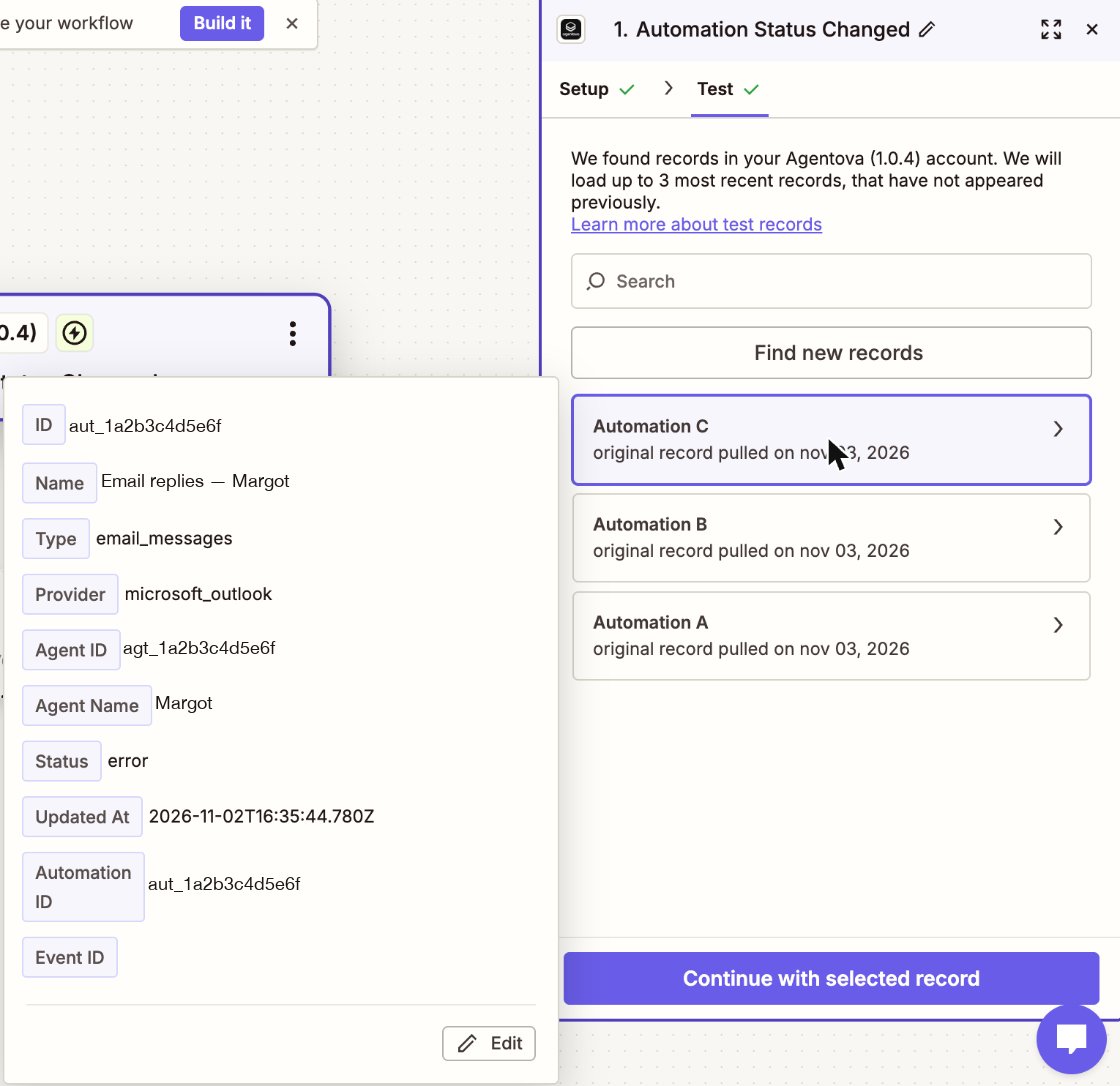
Test trigger on Automation Status Changed: your three most recent automations as samples, Event ID empty
How instant triggers work
When you publish a Zap, Zapier registers with Agentova to be notified of that event. When you turn the Zap off or delete it, that registration is removed. You don’t have to manage anything.- Signed notifications. Every notification is signed by Agentova. The app checks the signature, and ignores a notification that is unsigned, forged, or signed more than an hour ago. An ignored notification shows as Halted in the Zap’s history.
- No duplicates. After a network problem, Agentova can send the same event again. The app recognizes an event it already delivered to this Zap during the last 48 hours, and stops that run (Halted, “Ignored a repeated delivery…”), so your Zap doesn’t run twice.
- No guaranteed order. Two events can reach your Zap in any order. To know the latest status of an automation, compare Updated At.
- While Agentova’s API is switched off. Agentova can switch its API off for a while. The events that happen during such a break are never delivered to your Zap.
- After a long outage. If Zapier can’t be reached, Agentova makes up to 8 delivery attempts for each notification over about 27 and a half hours. Once three notifications in a row have been abandoned and deliveries have been failing for at least 72 hours, Agentova stops notifying that Zap and alerts your workspace admins. To start again, turn the Zap off and on.